

Pi
A wonderful clock for children (and adults)!
Every Feature, In Detail
Pi's settings are grouped into tabs, one for each part of how the console looks and behaves. Here's what each one does, and why it's worth a look.
A Parental Gate Keeps Young Kids Out
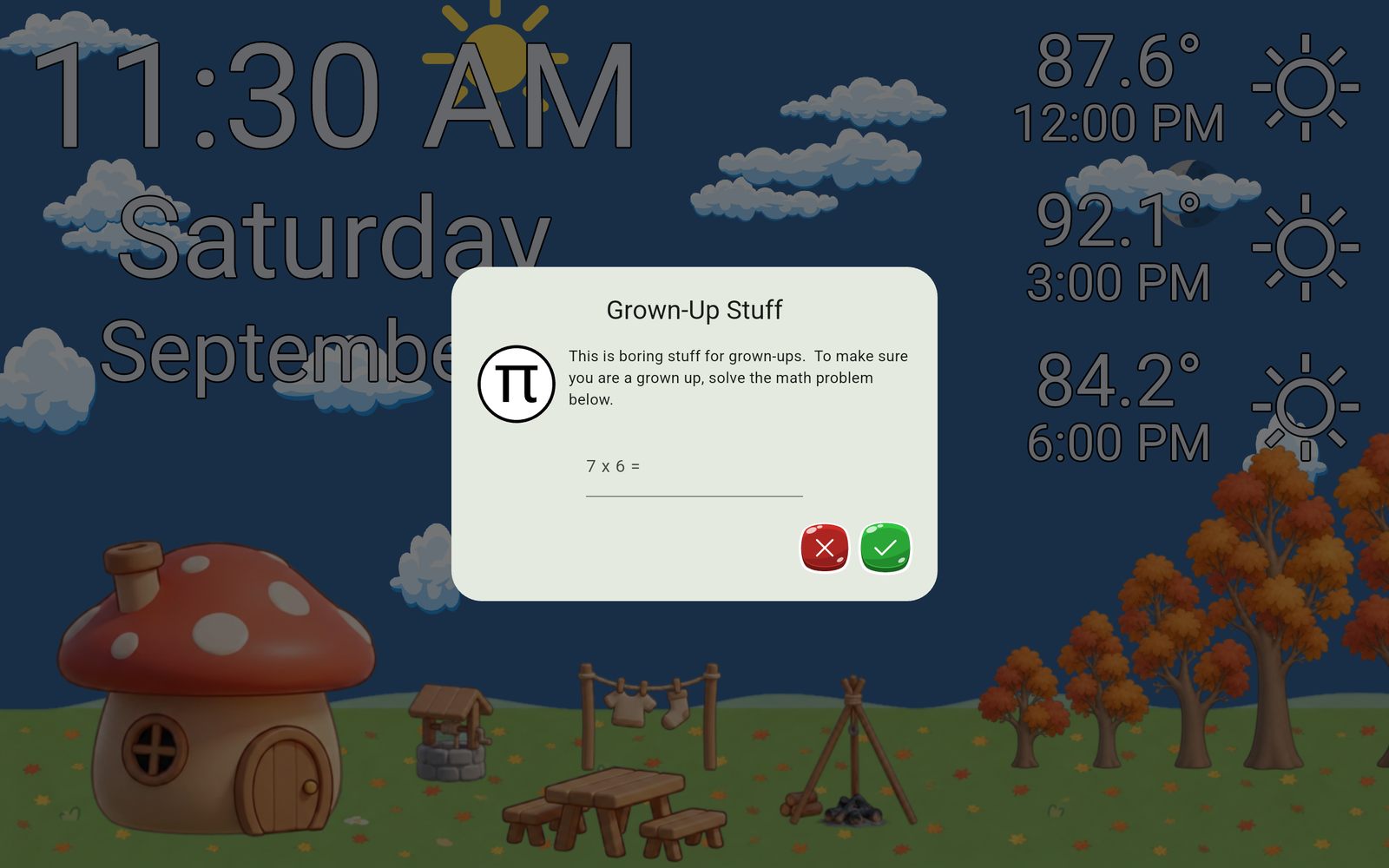
Getting to Pi's settings takes a long press and then a simple math problem, quick for an adult, effective at keeping a toddler from wandering in and changing things.
Visual Options
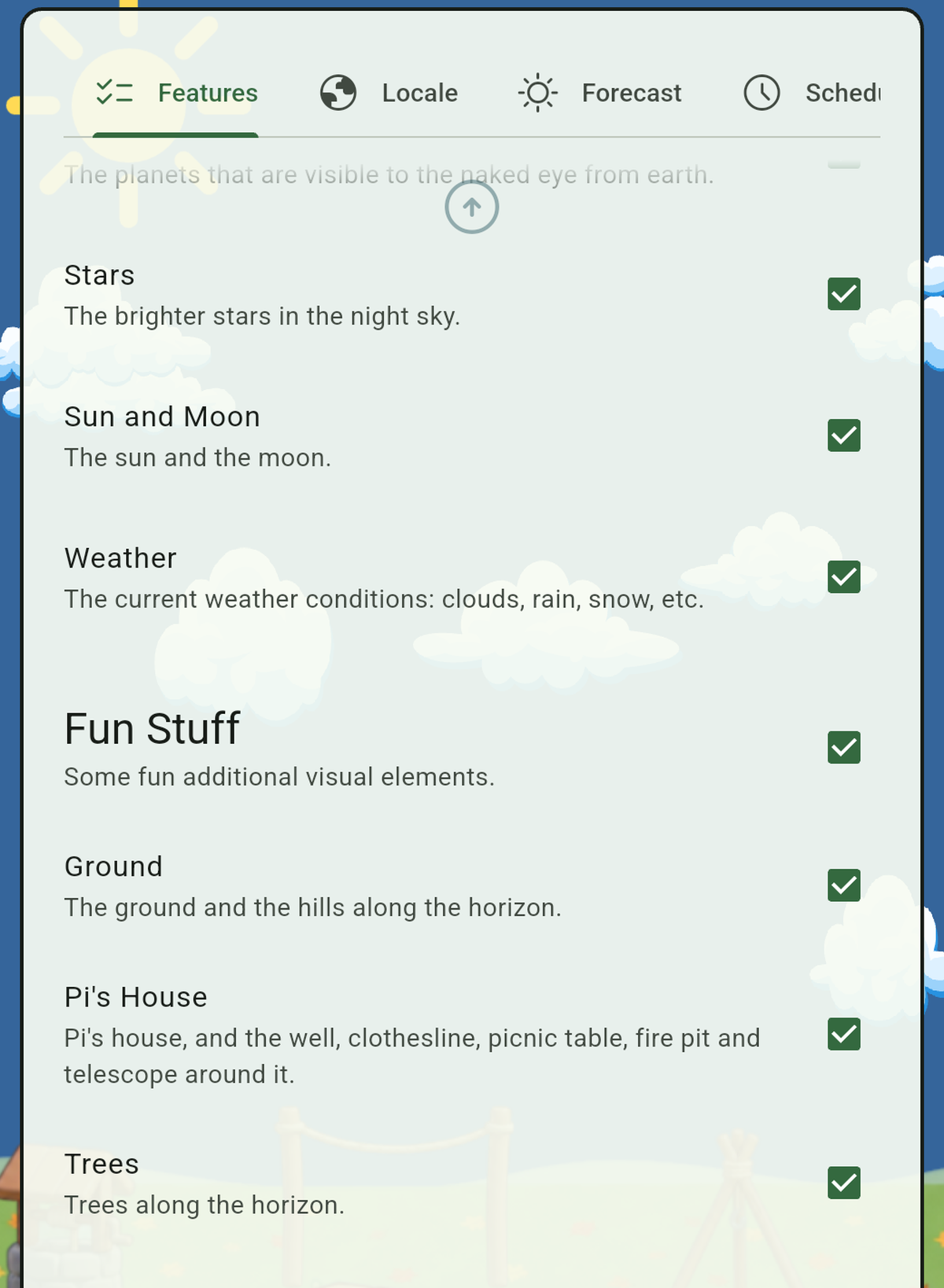
Everything in Pi's scene is optional. Open the settings menu and turn features on or off one at a time: the sun and moon, the weather, the planets, the stars and constellations, even small details of Pi's mushroom house like the well, the clothesline, and the picnic table. Want a calm, simple clock with no scenery? Turn off everything but the date and time. Want the full scene? Leave it all on. Everything is grouped into categories, so you can flip a whole group on or off at once.
Location and Language
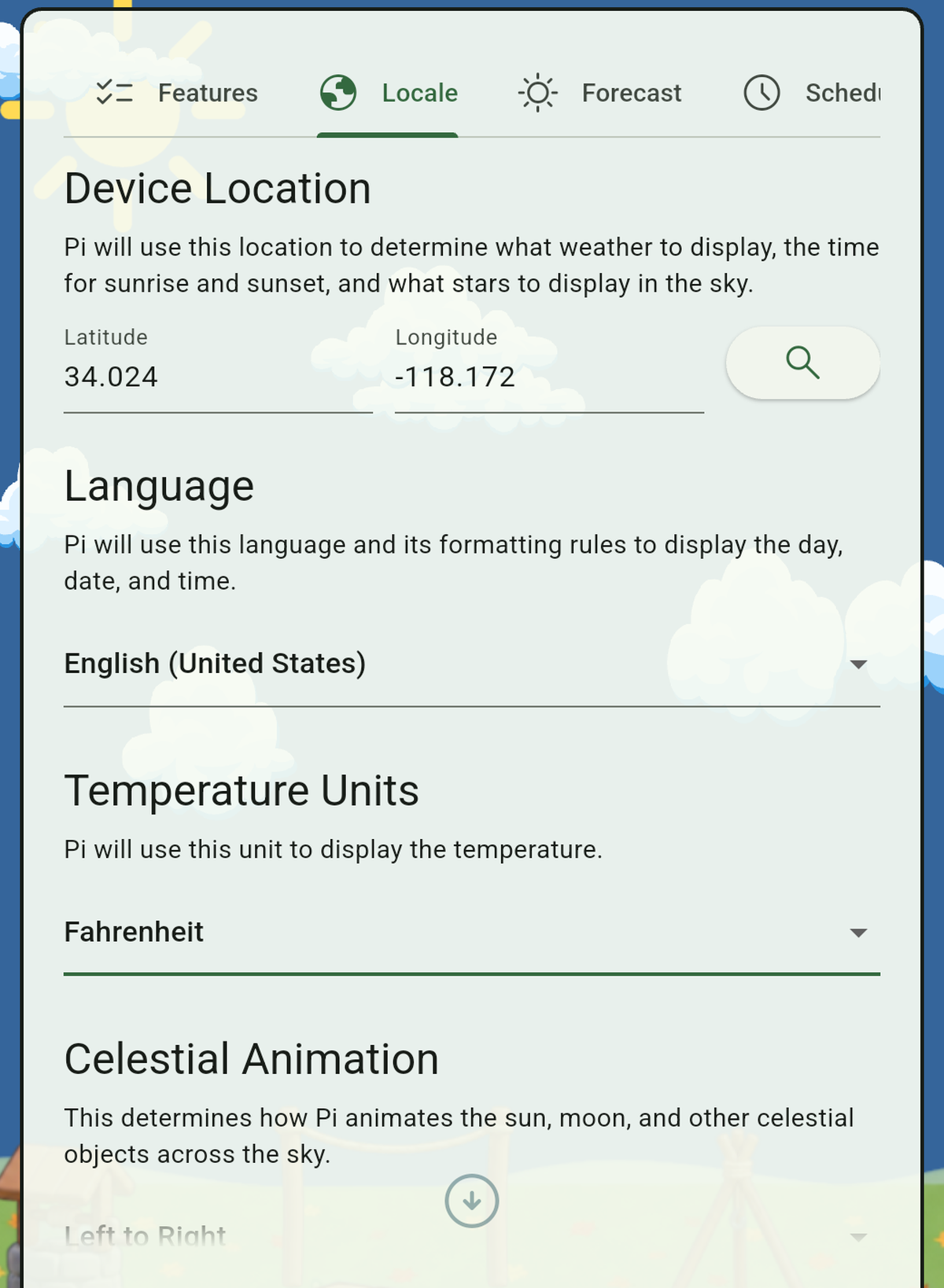
Pi needs to know its location so that it can show the weather, sunrise, sunset, stars, and planets that are actually overhead. Search by town or city, or enter your exact coordinates, all without any location permission. Then, pick the language Pi uses to display the time, day, and date. Next, choose Celsius or Fahrenheit. Finally, choose whether the sun and moon travel left to right or right to left, handy if your tablet ends up mounted with a different wall on its left than most.
Control the Forecast
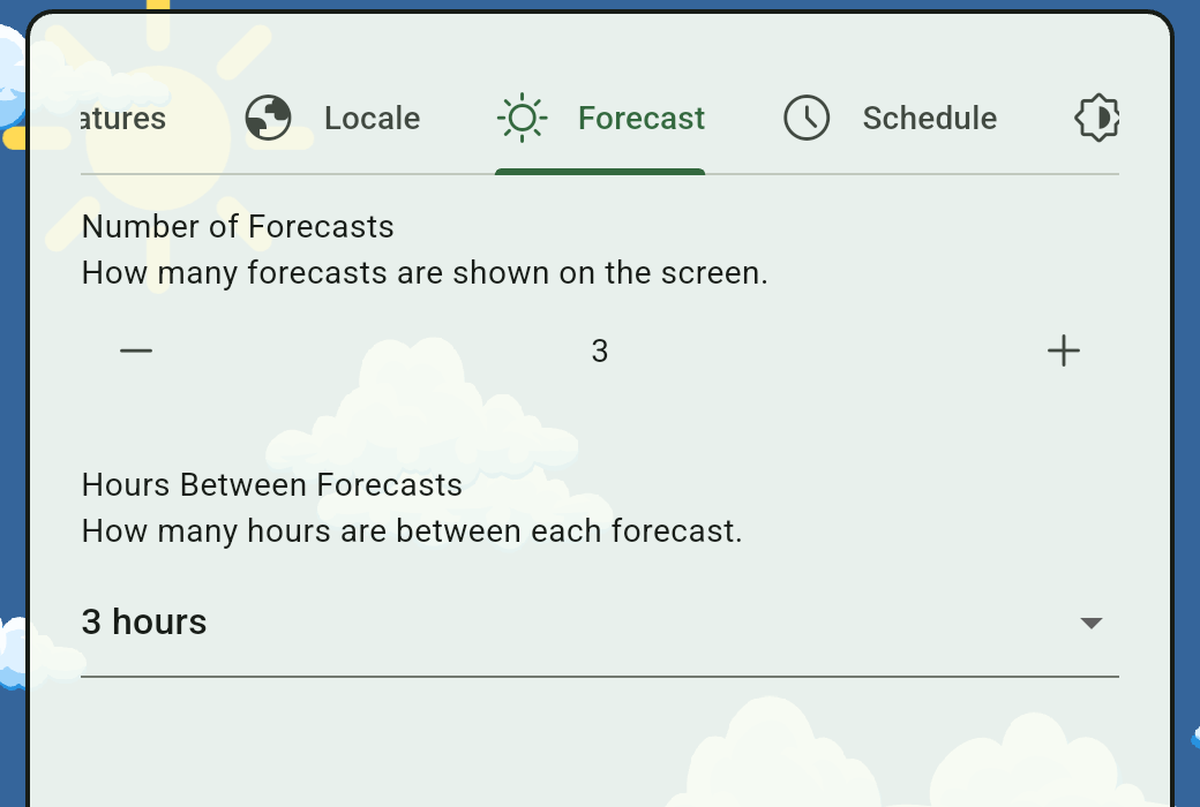
You can configure how many forecasts to show, and how many hours between them. Need to know what the whole day will bring? Try three forecasts at four hour intervals. Just want to know how the next few hours will go? Choose two forecasts at two hour intervals.
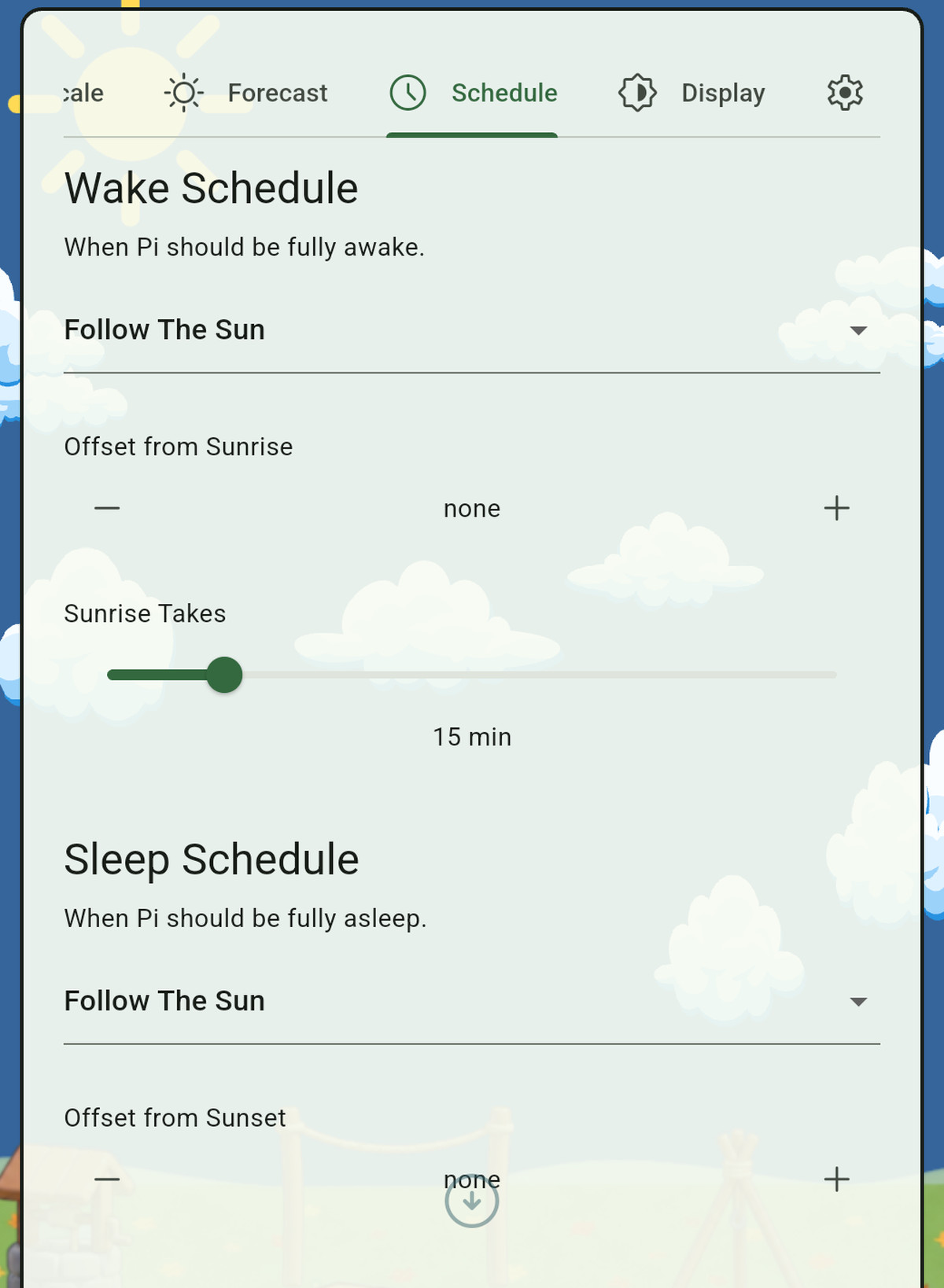
Choose Your Own Schedule
You can configure Pi to wake up and go to sleep with the sun, or you can choose specific times instead. If you display Pi in a bedroom, then we recommend using fixed times. If you display Pi in another room in the house, then having it follow the sunrise and sunset can be fun instead!
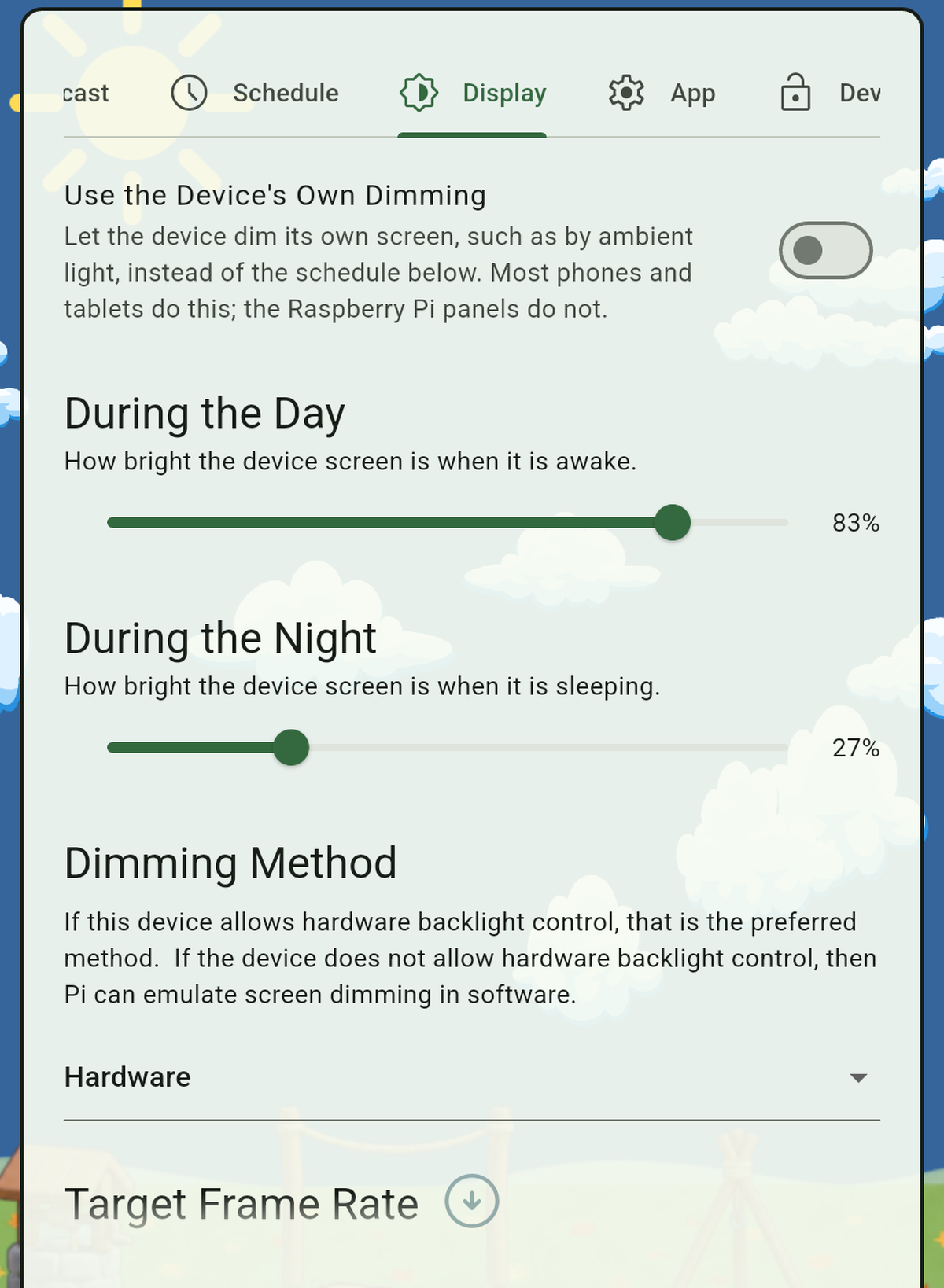
Brightness and Screen Controls
Set separate brightness levels for day and night, or let the device use its own sensors to set the brightness for you. There's also a frame rate setting for the animations, useful for stretching battery life on a device that isn't always plugged in.
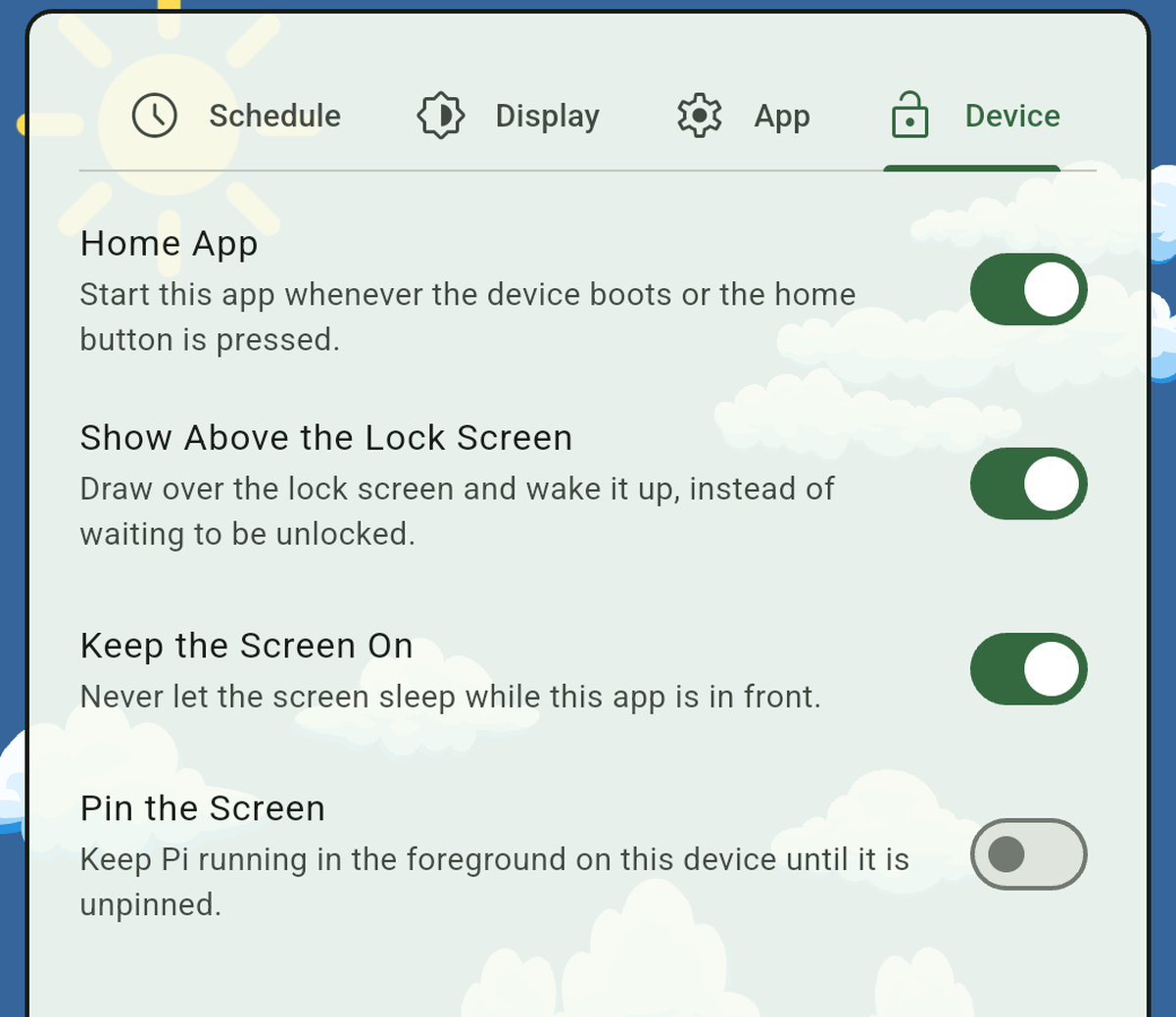
Lock It Down as Much as You Want
You have the option to lock the device down as much or as little as you like. If Pi will be installed in a child's room, you may want to lock it down as much as possible so they don't try to play games at night. On the other hand, if you use Pi as a clock at night and a play tablet during the day, you can lock the screen to Pi at bedtime and unlock it again in the morning.